Unlock Hidden Growth: How Tracking ChatGPT Referrals in GA4 Can Skyrocket Your Conversions
Ever wonder how ChatGPT manages to transform a simple request like “Best headphones for running in 2026” into a neat lineup of product names, prices, key features, and handy buy-links? It’s like having your very own digital shopping assistant that doesn’t just stop at suggestions but also tags its referrals with nifty tracking codes. As a marketer who’s seen traffic sources come and go, I find it fascinating how ecommerce pros can now leverage these UTM parameters within Google Analytics to dissect exactly how much love their products are getting from ChatGPT’s recommendations. Curious about who’s clicking through, what devices they’re using, or why certain pages are hitting the jackpot while others flop? This insight isn’t just another data point—it’s a potential game-changer for your product page strategy. Dig into the mechanics behind this smart traffic source and learn how to tune your pages to ride the wave of AI-driven shopping behavior. LEARN MORE.
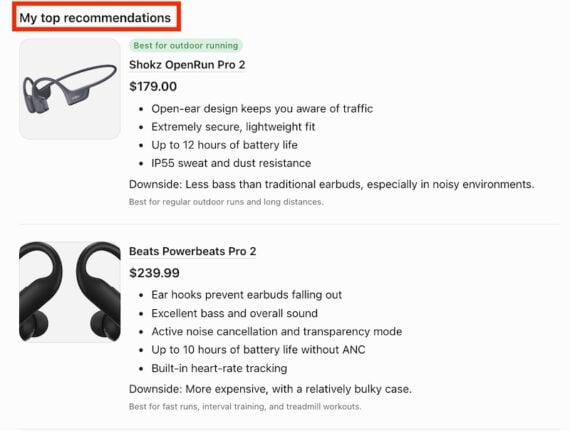
A common prompt in ChatGPT requests product recommendations or comparisons. ChatGPT typically replies with product names, prices, key features, and links to buy.
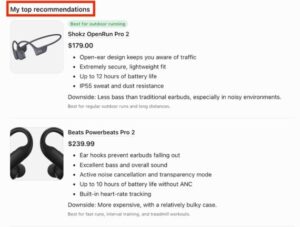
For example, for the prompt “Best headphones for running in 2026,” here’s a partial screenshot of ChatGPT’s response:

ChatGPT’s partial response to the prompt “Best headphones for running in 2026.”
ChatGPT’s links to external products include this parameter:
utm_source=chatgpt.com&utm_medium=feed
Ecommerce companies can monitor traffic in Google Analytics from that parameter in these steps:
- Log in to Analytics.
- Navigate to “Reports” > “Life cycle” > “Acquisition” > “Traffic acquisition.”
- In “Add filter” (at the top), select “Dimension” > “Traffic Source” > “Session source/medium.”
- Type “chatgpt.com / feed” in the “Match type” > “Contains” > “Value” field.
- Click “Apply” to filter the traffic report.

Use the Google Analytics “Traffic acquisition” report to isolate ChatGPT-referred visitors. Click image to enlarge.
Next, to see the product URLs referred by ChatGPT:
- Click “+” next to the “Session source/medium” field in the drop-down menu below the report,
- Select “Page / Screen” > “Page path and screen class.”

Isolate traffic to specific products referred by ChatGPT. Click image to enlarge.
You should now see traffic to product pages from ChatGPT’s recommendation links.

View the number of sessions and engagement to each product. Click image to enlarge.
To compare mobile vs. web traffic:
- Go to “Add comparison +” above the chart,
- Select “Mobile traffic” and “Web traffic.”
- Uncheck the default “All Users.”
The ensuing report shows traffic from ChatGPT by mobile and web — key metrics since most prompters use ChatGPT on its mobile app.

Compare traffic by mobile and web. Click image to enlarge.
How to use
Customizing the report around ChatGPT UTM parameters reveals:
- The products receiving the most ChatGPT traffic. Try to reverse-engineer likely prompts to confirm whether your product details in the answers are accurate and up to date.
- Products with little engagement or conversions. Test each page on both desktop and mobile devices. Look for distractions, errors, and other hurdles.
Learn from the best-performing pages. Why does ChatGPT select them? Do they rank prominently in organic search, which can elevate their exposure to ChatGPT? Evaluate product descriptions, reviews, FAQs, or use-case scenarios.








Post Comment